How to use Active@ Data CD/DVD/Blu-ray Burner
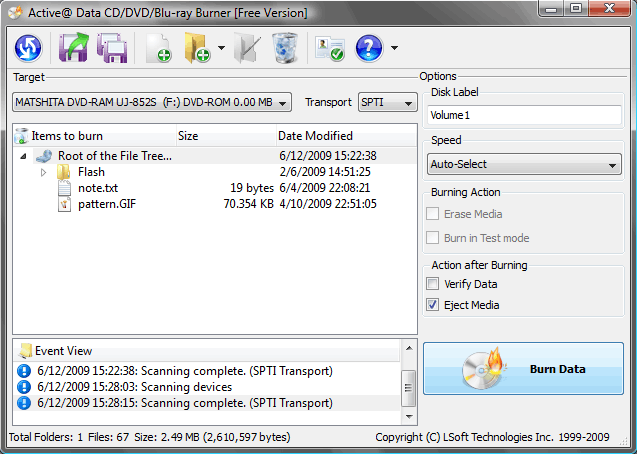
How to write files and folders to the CD/DVD/Blu-ray disk?
Follow these steps to burn files and folders to the Data CD/DVD/Blu-ray disk:
Step 1:
Specify files and folders to be burned.
- Click Add File
 toolbar button to add a single file, or several files (multi-selection supported) to a collection using the standard Open File dialog.
 - Click Add Folder toolbar button,
 or press Insert key, to add a single folder to a collection using the standard Browse for Folder dialog.
 - Choose Create New Folder menu item from drop down menu of Add Folder toolbar button, to create a new folder within a tree.
- Use context menu over File Tree area to execute the same commands.
- You can also Drag and Drop files and folders to the File Tree area from the Windows Explorer.
Step 2:
Choose a Target, or burning device and Transport: SPTI, SPTD or ASPI.
- SPTI — This transport is preferable for NT-based systems (NT4/2000/XP/Vista). It can´t be used for Windows 9x (95/98/ME) systems. Under Vista allows to burn user without Administrator´s rights. XP and earlier systems — Administrator´s rights required.
- SPTD — This transport is preferable for NT-based systems (NT4/2000/XP/Vista). It can't be used for Windows 9x (95/98/ME) systems. Requires special drivers to be installed and machine reboot is needed. If drivers installed properly — allows any local user to burn (without Administrator's rights). Look into Active@ Data Burner installation folder for files SPTDinst-v162-x64.exe and SPTDinst-v162-x86.exe to install SPTD drivers on x64 & x86 plathform respectively.
- ASPI — Intended for Windows 9x systems (98/ME). For others still supported in compatibility mode, but requires winaspi32.dll in the application directory.
Step 3:
In Options - specify burning preferences:
- Disc Label — by default it is a current date.
- File System — select either UDF (Universal Disk Format) or ISO9660+Joliet
- Speed — select one of available speeds supported by burner and media combination. Auto-Select — by default.
- Erase Media — for Read-Write (RW) media type — erases it first before burning starts
- Burn in Test mode — simulates burning process, but laser is turned off
- Verify Data — after burning is complete — verify how data has been written, check for reading errors
- Eject Media — after burning is complete — eject CD/DVD/Blu-ray
Step 4:
Insert a blank CD/DVD/Blu-ray disc into the CD/DVD/Blue-ray disc drive and click the Burn Data button.
Step 5:
See the progress. To cancel data burning you can click the Cancel button.
How to automation of burning data to CD/DVD-ROM/Blu-ray?
Syntax:
BurnDataCD.EXE [/ADD=FOLDERPATH] [/FILE=FULLPATH] [/BURN] /[EXIT-IF-OK] [/ERASE] [/VERIFY] [/EJECT] [/TITLE]
Software accepts command line parameters to automate burning process:
- /ADD=FOLDERPATH - adds a folder to the list of items to be burned. FOLDERPATH parameter is a full path (i.e. "C:\Program Files\My Folder\") to the target item to be burned. Must be in quotes if contains spaces.
- /FILE=FULLPATH - loads a tree from a collection being saved previously. If item exists in collection, but not on disk, it just being ignored. FULLPATH parameter is a full path (i.e. "C:\Program Files\My Folder\My Collection.cdb") to the saved collection. Must be in quotes if contains spaces.
- /ERASE - erases RW media before burning starts. Ignored if media not RW.
- /VERIFY - file tree verification after burn process has completed.
- /EJECT - ejects media after burning.
- /TITLE - sets a label for a disc to be burned.
- /BURN - process of burning data CD/DVD starts automatically right after program launch. If some command line parameters not specified explicitly, last used parameters will be loaded for the command execution.
- /EXIT-IF-OK - if command is successfully completed, program auto-exits. If errors detected - you will see error messages on the dialog (no auto-exit).
- /FS=[0-CDFS, 1-UDF] — specifies which file system to use. Zero sets ISO9660, One sets UDF.
Note: You cannot use parameters /ADD and /FILE all together.
Example. To burn Data CD/DVD automatically from command line and exit the program after successful burning, run:
C:\> BurnDataCD.exe /ADD="C:\Temp\My Folder" /VERIFY /EJECT /BURN /EXIT-IF-OK
This command adds a content of folder "C:\Temp\My Folder" (with all its content - recursively) to the list of items to be burned, starts burning immediately after loading, verifies data when burning is complete, ejects media, and exists if no errors detected.